Plain text · On your device · Free
Type Your Week
Skip clicking every block. Write what you do each week — we turn each line into colored blocks on a grid, then you polish it in the full planner.
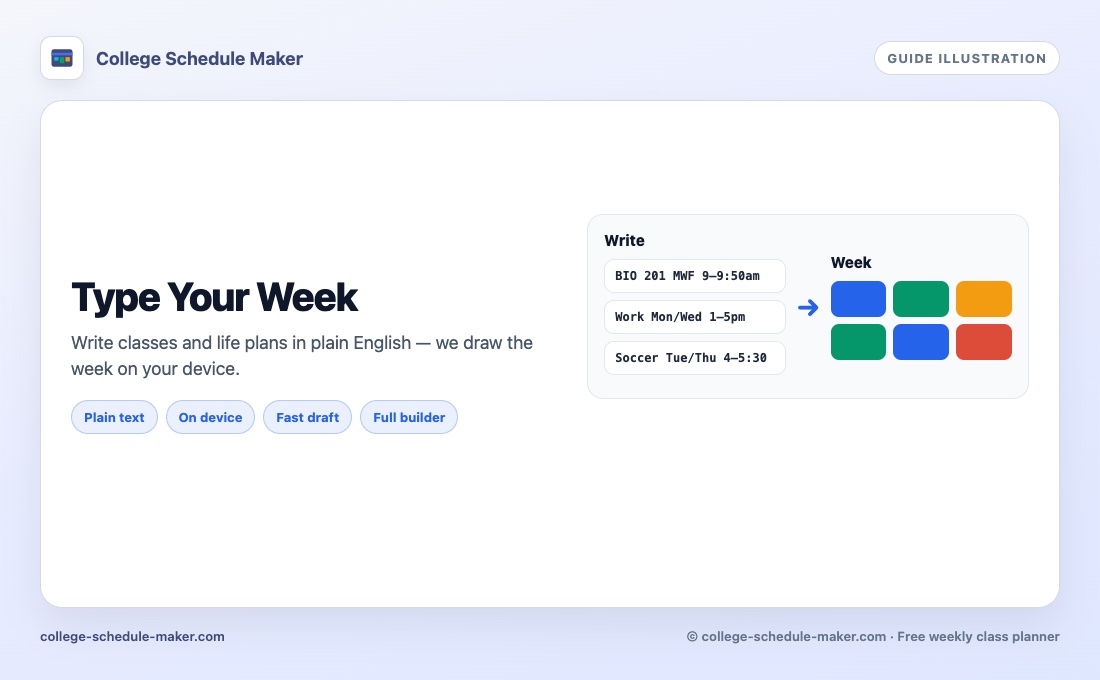
What Type your week does (and does not invent)
Type your week is the plain-text path into College Schedule Maker. You write classes, shifts, gym, or family plans one line at a time. The page reads days and times in your browser and draws a colorful week grid — no sign-up, and no cloud AI that invents midnight study marathons for you.
Think of it as a fast first draft. When the grid looks close, open the full builder to drag, recolor, print, or share. Prefer clicking every block yourself? Use the how to create a class schedule walkthrough instead.
Before you start
- Have section times from registration or your syllabus (even rough notes are fine)
- Write one commitment per line — name, days, start–end, optional place
- Know that overlapping times get a red outline so you can fix them before you commit
Step 1 — Open Type your week and write lines
Go to /ai. Paste or type lines like
Morning swim Mon Wed 6-7am,
BIO 201 MWF 9-9:50am Hall B, or
Match Sat 10am-12pm.
Prefer speaking? Tap Speak under the text box and say a line out loud
(Chrome or Safari — uses your browser’s speech recognition). Pause between commitments so each lands on its own line.
Stuck for ideas? Press Surprise me for a realistic sample week (school, work, fitness, and more), then edit the text to match your life.
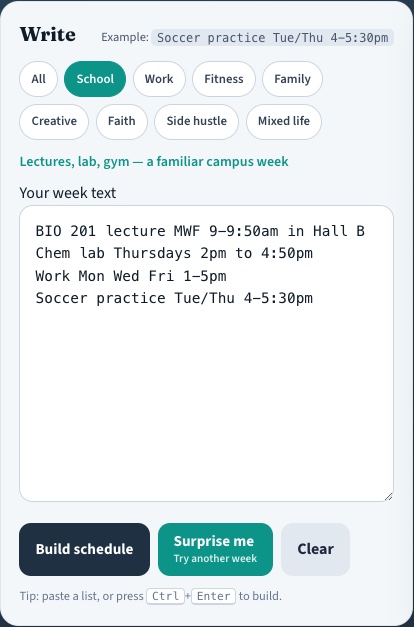
Step 2 — Build and review the grid
Click Build schedule (or paste and let auto-build kick in). Blocks appear on the week with colors. A red outline means two things overlap — fix the times in the text or in the edit panel before you continue.
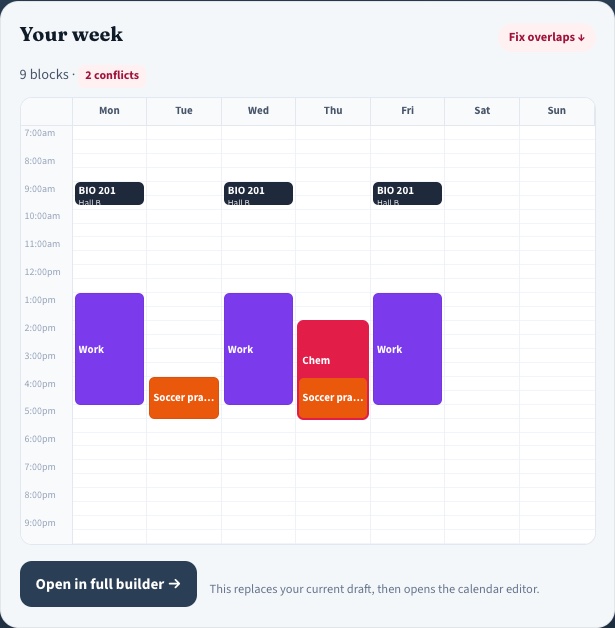
Step 3 — Open the full builder
When the draft looks right, click Open in full builder. That replaces your current draft schedule with the typed week, then takes you to the same planner as the homepage — drag edges, change colors, adjust Settings, Print, Save Image, or Share. Saturday/Sunday lines and early or late hours turn those days and the hour window on automatically so nothing is hidden.
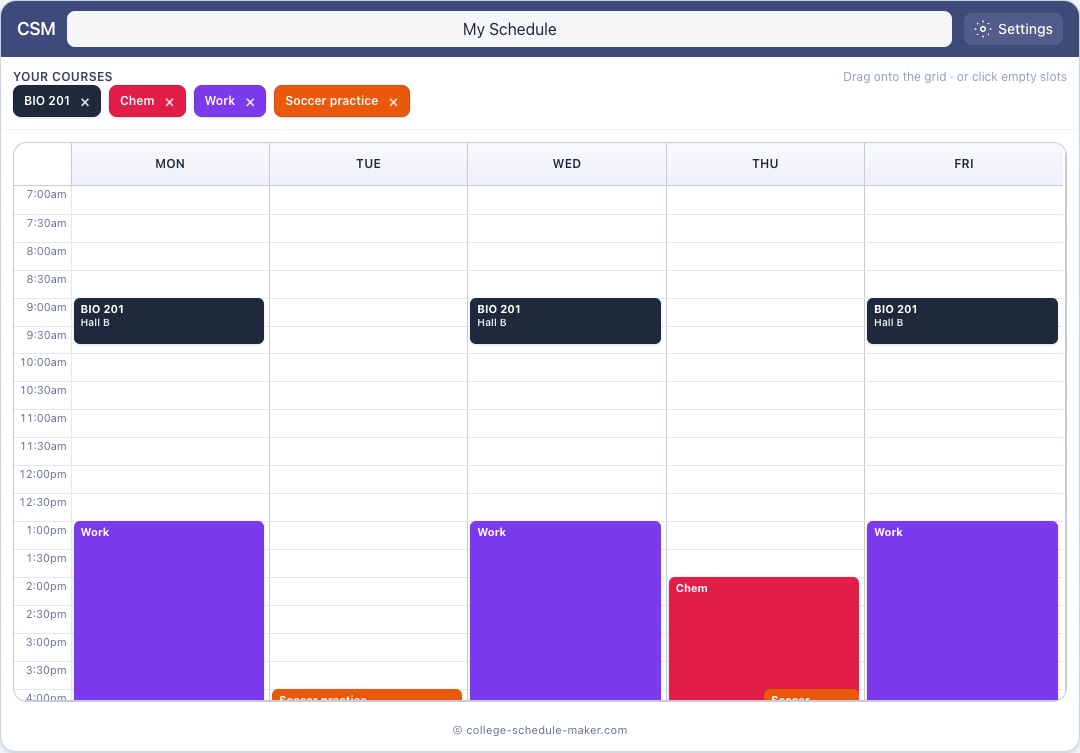
Line formats that parse cleanly
Morning swim Mon Wed 6-7am @ City PoolCalc II MWF 10:00-10:50am Room 204Chem lab Thursdays 2pm to 4:50pmMatch Sat 10am-12pmGig Friday 8pm-11pm @ The LoftDinner with family Sun 6-8pm
Military times (14:00-15:30), pipes, and @ locations usually work too.
If a line is skipped, the page shows a warning — tweak that line and build again.
Common mistakes
- Cramming three classes into one long sentence (split into three lines)
- Leaving overlaps for “later” — fix them while the text is still open
- Treating the draft as final — always open the builder for print-ready polish
- Expecting a chatbot to invent study hours you never wrote
Type your week vs the manual class schedule maker
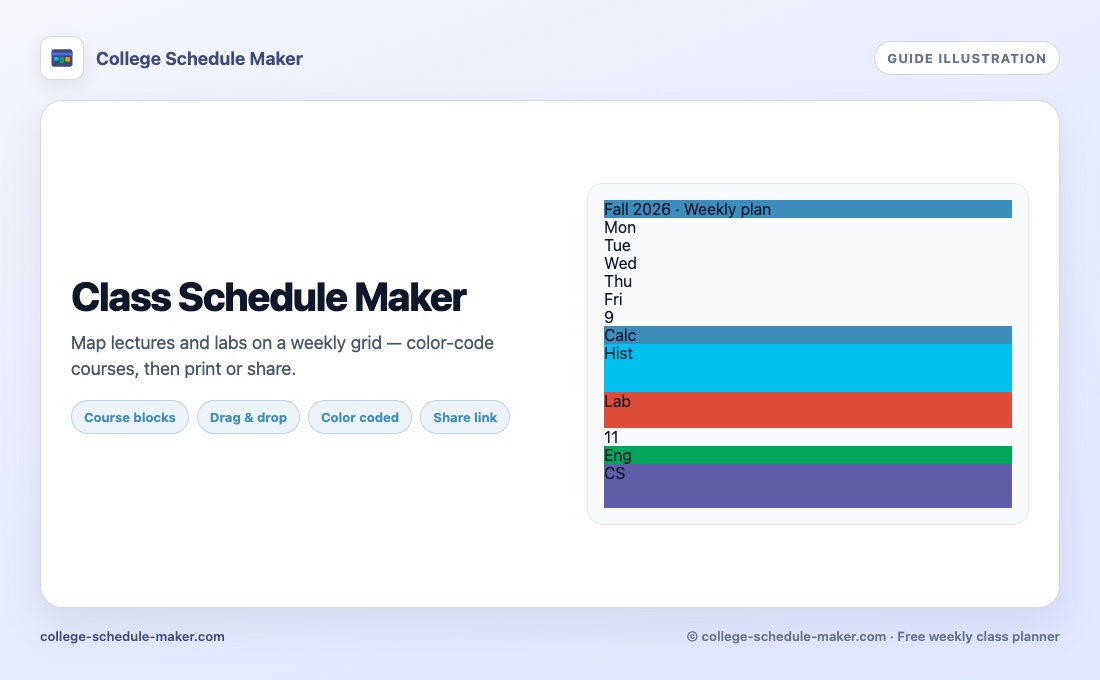
Same product, two doors. Class schedule maker / the homepage builder is best when you place each course by hand. Type your week is best when you already have a list of times (or want Surprise me for a sample). Either path can end in a printable class schedule or a shared link for classmates and advisors.
Quick checklist
- Every fixed commitment from your syllabus or job is on a line
- Overlaps are fixed or intentionally accepted
- You opened the full builder and named the schedule (for example “Fall 2026”)
- You printed, saved a PNG, or kept a Share link as backup
FAQ
Is Type your week a cloud AI that uploads my schedule?
No. Parsing runs in your browser. Nothing is sent to an AI API to invent your week. You stay in control of every block.
What should I write on each line?
Name + days + times, optional place. Example: “Morning swim Mon Wed 6-7am”, “BIO 201 MWF 9-9:50am Hall B”, or “Match Sat 10am-12pm”. One commitment per line works best. You can also tap Speak and dictate a line. Weekends and early/late hours open automatically in the full builder.
Can I dictate my week with voice?
Yes on Chrome and Safari. Tap Speak under the text box, allow the microphone, and pause between lines. Speech uses your browser’s recognition; schedule parsing still runs on your device.
Can I edit after the grid appears?
Yes. Open in the full builder to drag, resize, recolor, print, Save Image, or share — same tools as the homepage planner.
When should I use the manual builder instead?
Use the homepage builder when you want pixel-perfect placement from the start. Use Type your week when you already have a list of times and want a fast first draft.